Hello everyone 
Many of you asked how to find your purchases on our new store, so here is a simple step-by-step guide with pictures.
Good to know before you start:
- There is no password. You sign in with your email and a 6-digit code that we send to you.
- Use the same email you used for your purchases, including purchases from our old store (maitreyastore.com). All your past orders are already in your account.
- Orders from the old store appear in your account with a name that starts with SELLFY-.
Step 1: Open your account
Go to maitreyafields.store and click the person icon at the top right.

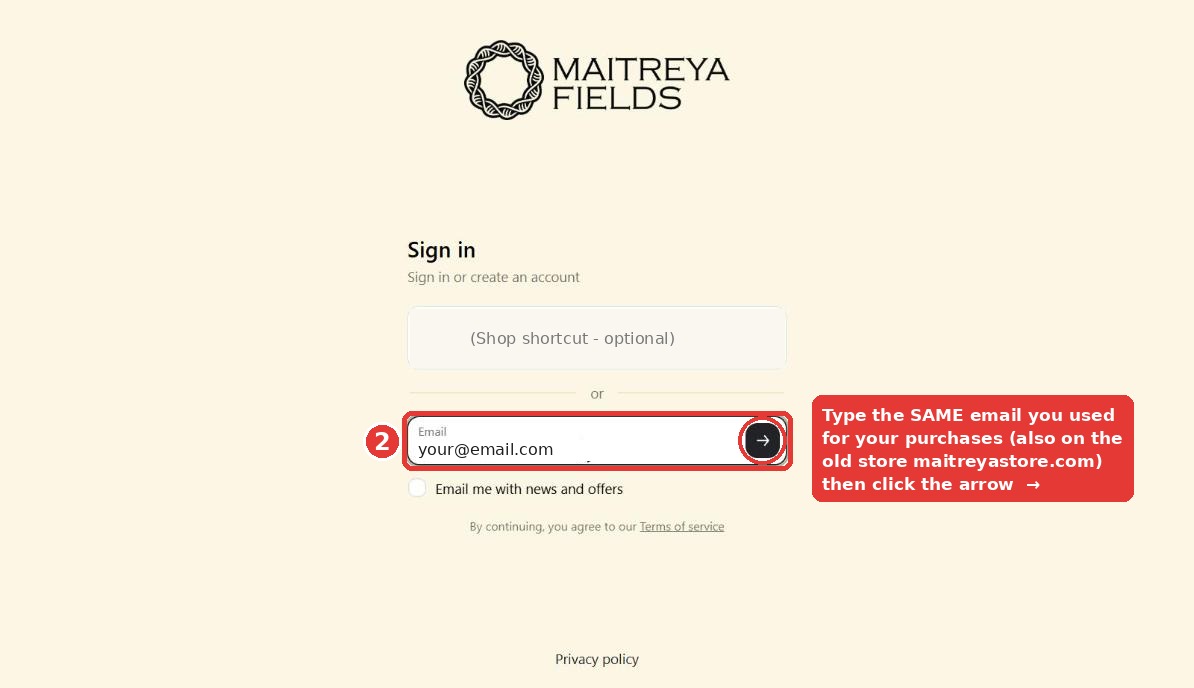
Step 2: Sign in with your email
You will see one of these two options:
- A: If your email is already shown, click Continue with Shop.
- B: If not (or if it is not your email), click More sign-in options.

Type the email you used for your purchases and click the arrow.
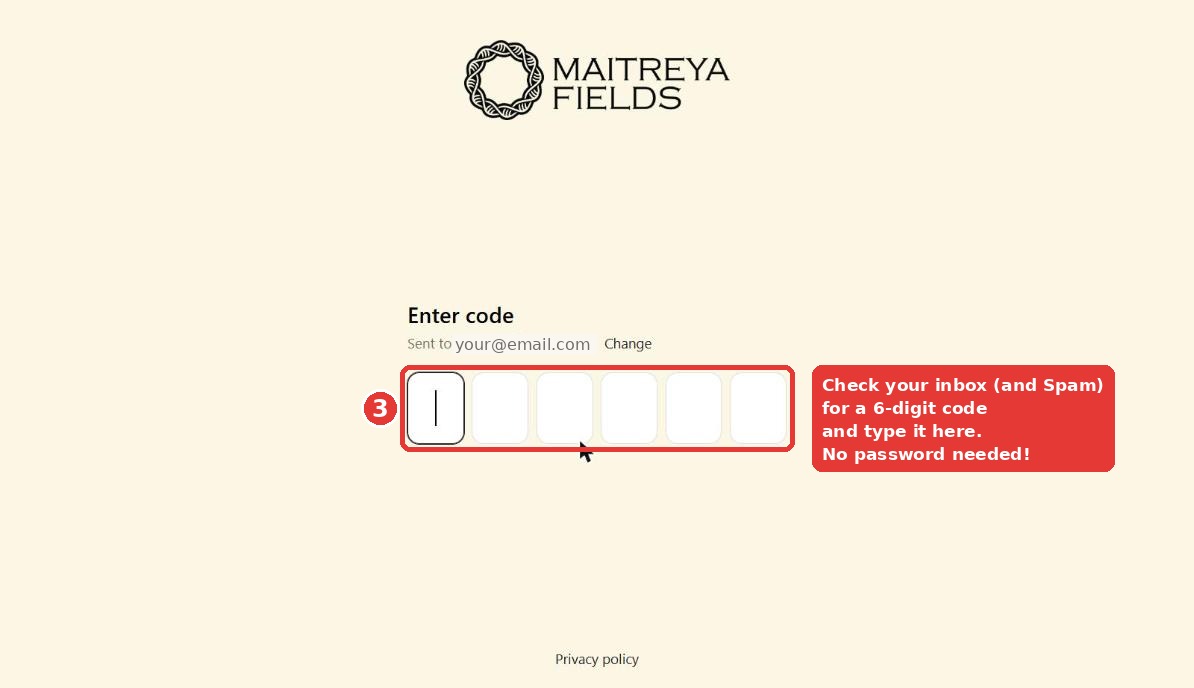
Step 3: Enter the code
We send a 6-digit code to your email. Type it in the boxes and you are in.
Can’t find the email? Please check your Spam / Promotions folder and wait a minute.
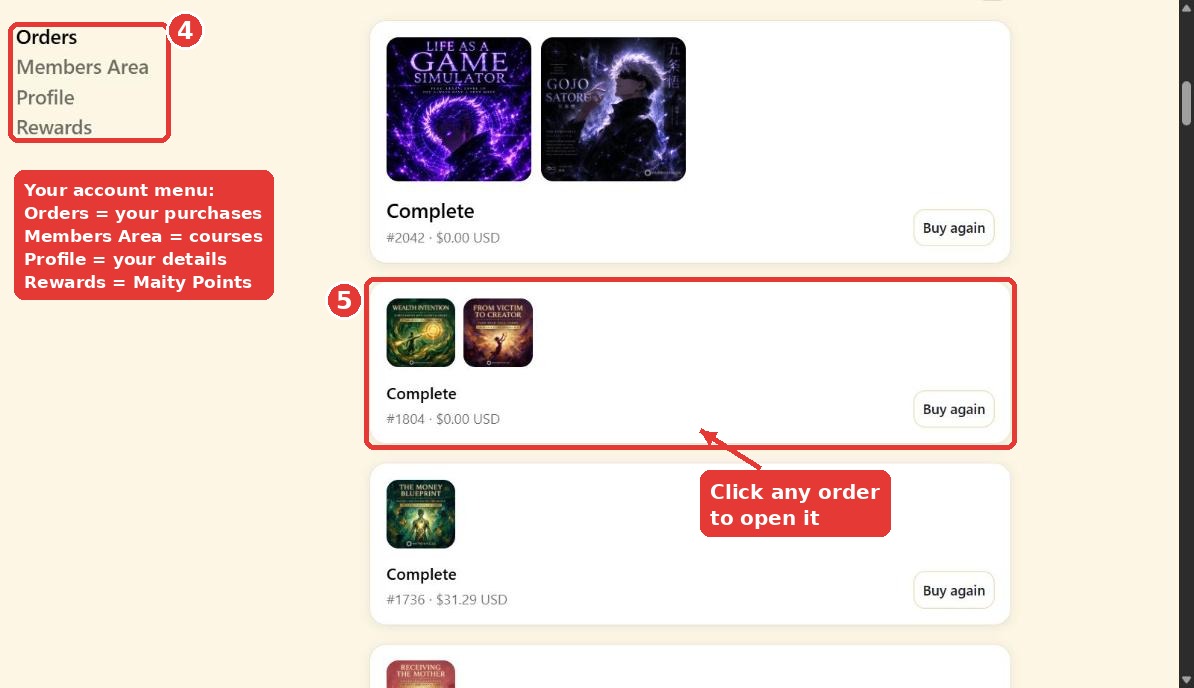
Step 4: Your account menu
On the left you will find:
- Orders: all your purchases
- Members Area: your online courses
- Profile: your name and details
- Rewards: your Maity Points
Step 5: Open an order
Under Orders, click on any order to open it.
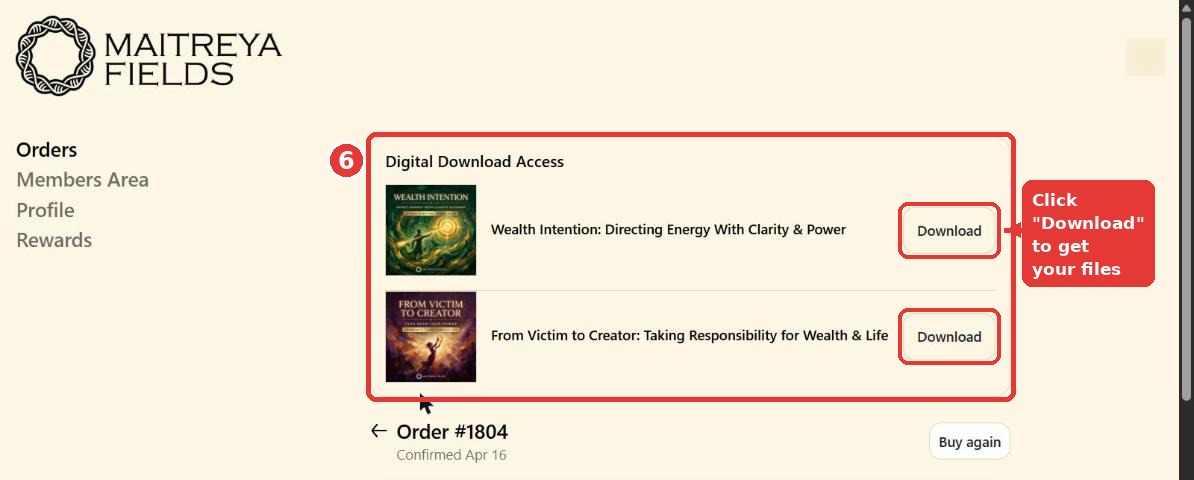
Step 6: Download your files
At the top of the order you will see Digital Download Access. Click Download next to each product to get your files.
Tips
- If you have purchases with different emails, sign in with each email separately.
- New purchases made on the old store are added to your account automatically (this can take up to a week).
- Still can’t see an order or a file? Send us a private message here on the forum (please don’t post your email address publicly) and we will help you.
